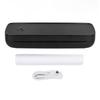
Feature:
1. Easy Connection: Tattoo transfer machine adopts USB interface, just connect the PC or mobile terminal, select the desired pattern on the APP, and transfer the pattern in a few seconds.
2. Improve Efficiency: There are no complicated keys on the machine, it can automatically fix the transfer paper, the tattoo pattern can be quickly copied to the paper, improving the work efficiency of the tattoo artist.
3. Stable Performance: Tattoo stencil transper machine using thermal printing, no need to replace parts and ink, which can provide high resolution, high speed, clear patterns, and low noise.
4. Wireless Use: With a 2000mAh battery, provide long endurance, allow tattoo artists are available anytime, anywhere, with a power reminder light, convenient tattoo artist timely charging.
5. Portable Size: Tattoo transfer printer shell is made of ABS material, which is lighter and smaller than the old transfer machine, and the tattoo artist can carry it with him and does not take up space.
Specification:
Item Type: Thermal Tattoo Transfer Machine Kit
Material: ABS, electronic components
Color: Black Green
Battery: Lithium Battery 2000mAh(Included)
Input: 5V 2A
Charging Port: Type C
Interface: USB
Size: Approx. 310 x 66 x 40mm 12.2 x 2.6 x 1.6in
Print Type: Thermal print
Applicable Printing Paper: Standard A4 thermal printing paper (210mm), original adapted transfer paper
Printable: Pictures, documents, web page printing, scanning file printing, etc.
Support Connected Devices:
For IOS, for Android
For Ipad
For Windows
For Chrome OS
This tattoo transfer machine is not suitable for printing: 1. Complex lines; 2. Color pattern; 3. Large dark lines
Only applicable to: 1. Simple lines; 2. Black or monochromatic patterns; 3. Clear line patterns
How to Use:
1. Install APP
Scan the code on the box to download the APP.
2. Switch the machine on and off
Power on: Press and hold the power button for 3S until the indicator lights up
Power off: Hold down the power button for 3S until the indicator is off
After starting up, you can connect the printer in the APP. If you cannot connect it
, please check whether the machine has power. If there is no power, you can connect it with full power. When the printer is low battery, the indicator blinks green.
3. Print operation steps:
Step 1: Remove the transparent paper of the tattoo transfer paper and tear off the pages;
Step 2: Download the application and connect to the M08F A4 (for mobile phones) or via USB cable (for computers);
Step 3: Press the printer open key for 3 seconds to turn on the machine, the white page faces up, the ribbon page faces down, and flush with the printer;
Step 4: Cut out the pattern and apply transfer paste to the arm to better transfer the pattern, alcohol test wipe transfer marks.
4. Paper stuck, abnormal handling and cleansing
Press the PUSH button on both sides of the host to open the clamshell.
5. Connect applications
After the device is turned on, open the APP, click the "Not connected" button in the upper right corner to enter the Add Device list, click the device to connect it
, and then print.
Tip: When connecting, make sure your phone is on and your device is close to your phone.
6. Type of printing paper
It is recommended to use tattoo printing paper, non special printing paper may not be safe, will cause paper jam or paper feed reading is inaccurate, easy to cause skewed printing.
7. Common Problems
Q: No connected device is found when I add a device to the APP?
A: Please check whether the device is turned on to ensure that the device
is working.
Q: What can I do if my device cannot print?
A: 1. Confirm whether the mobile phone is turned on, and exclude the possibility of others connecting to this device.
2. Check whether tattoo printer paper jam.
3. Whether the print head is overheating, if it is overheating, please wait for the print head to cool before trying to print.
Q: Why is the print all white paper, no content?
A: It may be caused by incorrect installation of printing paper. Please refer to the introduction of Replacing printing paper to reinstall it.
Q: Why did the printed word fade?
A: 1. Please check whether the device is low power.
2. To check whether the print head is covered with stains, please gently wipe and cleanse with a cloth..
Package List:
1 x Thermal Tattoo Transfer Copier1 x USB Charging Cord2 x Manual1 x Storage Bag10 x Print Paper1 x OTG Data Cable
Note:
1. Do not charge or use the printer in hot, wet or dusty places 2. Please use the 5V 2A input to charge. You can use the phone power adapter to charge 3. After printing, do not touch the print head directly to prevent overheating and scalding 4. Gently insert or remove the charging cable to prevent excessive force from damaging the connector 5. Improper charging may result in print head damage 6. Remove the charging cable after charging is complete 7. Place the machine on a stable horizontal plane to prevent the machine from slipping and damaging 8. If you do not use the machine for a long time, please turn off the power supply 9. Prevent foreign matter from being transferred into the machine, so as not to cause failure or other risks