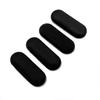
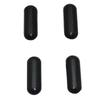
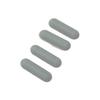
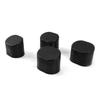
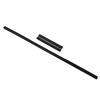
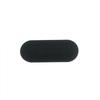
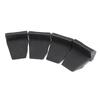
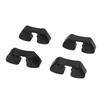
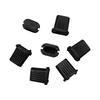
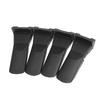
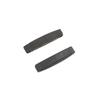
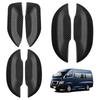
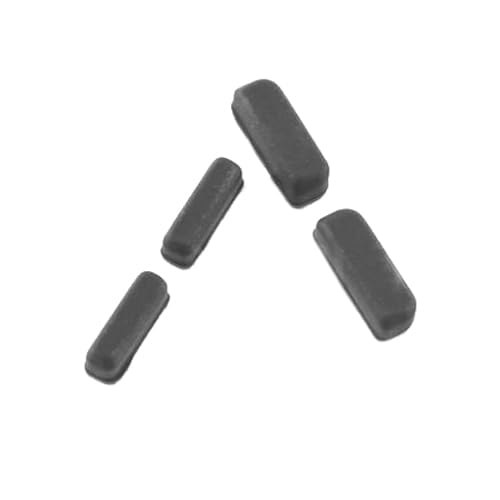
pachet inclus: 4 Picioare de Cauciuc Negre pentru Partea de Jos a Laptopului (4 piese)
Modele compatibile: Lenovo Thinkpad
X1 Carbon Generația a 7-a 20QD 20QE 20R1 20R2
X1 Carbon Gen 8 20U9 20UA
Ghid de instalare picioruș laptop
1. Pregătirea
1. Selectați tamponul pentru picioare adecvat
*Vă rugăm să confirmați modelul laptopului dumneavoastră și să achiziționați piciorușul de cauciuc corespunzător.
2. Pregătirea Uneltelor
*Pensetă cu vârf fin sau cuțit cu lamă subțire (pentru îndepărtarea vechiului suport pentru picior).
*Tampoane cu alcool sau o cârpă de curățat (pentru curățarea suprafeței adezive).
*Nou suport pentru picioare.
2. Îndepărtarea vechiului suport pentru picior
1. Dezlipește cu grijă vechiul suport pentru picior.
*Desprindeți încet pad-ul vechi de picior de la margine folosind penseta sau un cuțit, având grijă să nu deteriorați computerul.
2. Notă: Dacă rămâne bandă adezivă sau alt material de fixare sub covoraș, îndepărtați-l.. Acest lucru va afecta instalarea noului covoraș pentru picior.
3. Curățarea suprafeței adezive
*Ștergeți partea inferioară a laptopului cu un tampon cu alcool pentru a îndepărta orice adeziv rămas sau praf și pentru a asigura o aderență sigură pentru noile piciorușe.
3. Instalarea Noilor Suporturi pentru Picioare
1. Aliniere
*Aliniați noile suporturi pentru picioare în pozițiile lor originale (folosind tampoanele vechi rămase și scobiturile de pe laptop ca referință).
2. Sigur
*Desprindeți folia protectoare de pe spatele noilor tălpi și apăsați-le ușor în jos timp de 10-15 secunde pentru a asigura o lipire fermă.
*Verificare cheie: Asigurați-vă că fiecare pad pentru picior este complet atașat și că nicio margine nu este slăbită sau ridicată.
4. Verificare după instalare
1. Așezați laptopul pe o suprafață plană și verificați dacă este stabil. (ajustați poziția suporturilor pentru picioare dacă sunt instabile).
2. Asigurați-vă că suporturile pentru picioare sunt la aceeași înălțime și că laptopul nu este înclinat.
[Note]
1. Potrivirea cu modelul
Asigurați-vă că achiziționați pad-uri pentru picioare complet compatibile cu modelul laptopului dumneavoastră. Pads de picior incompatibile pot duce la o instalare sau aderență slabă.
2. Sfaturi de eliminare
Îndepărtarea forțată a piciorușelor cu un instrument dur precum o șurubelniță poate deteriora laptopul sau găurile interne pentru șuruburi.
3. Detalii de instalare
Dacă întâmpinați rezistență, verificați dacă au rămas benzi adezive vechi sau obiecte străine.
După instalarea noilor suporturi pentru picioare, evitați să mutați frecvent laptopul timp de 24 de ore și permiteți adezivului să se întărească complet.
4. Conditii de mediu
Asigurați-vă că mâinile și laptopul sunt uscate înainte de instalare. Rezistența adezivă va fi redusă în medii umede.
Urmarea pașilor de mai sus va asigura o instalare sigură a noilor tampoane pentru picioare, prelungind durata de viață a laptopului dumneavoastră și îmbunătățind confortul utilizatorului.
Dacă aveți întrebări, vă rugăm să nu ezitați să contactați serviciul nostru pentru clienți. Multumesc pentru cooperare.
Picioare de cauciuc inferioare negre pentru laptop Lenovo Thinkpad X1 Carbon Generația a 7-a 20QD 20QE 20R1 20R2, X1 Carbon Generația a 8-a 20U9 20UA (pachet de 4)
Instrucțiuni pre-cumpărare: Înainte de a cumpăra, vă rugăm să confirmați modelul dorit și să vă asigurați că produsul pe care îl achiziționați este compatibil.. (Vedeți mai jos informații detaliate.) După confirmarea modelului dumneavoastră, vă rugăm să verificați și că piesa pe care o aveți corespunde imaginii produsului.. Produsul pe care îl primiți va fi același cu cel din imagine, așa că vă rugăm să verificați cu atenție.
*"Instrucțiuni de instalare a piciorului și precauții": 1. Îndepărtați complet picioarele vechi pentru a expune găurile de montare. 2. Mai întâi, instalați picioarele de la ambele capete, fixându-le ferm în găurile de montare de pe PC.. Apoi, aliniați orificiul central și apăsați în jos pentru a sigila.. Instalarea este finalizată.
Suport pre- și post-vânzare: Dacă aveți întrebări înainte de a cumpăra, vă rugăm să contactați serviciul de asistență clienți în orice moment.. Dacă aveți întrebări sau nelămuriri după primirea produsului, vă rugăm să contactați serviciul de asistență pentru clienți.. Vă asigurăm că vom oferi și o rambursare completă.
Vă mulțumim pentru patronajul dumneavoastră a continuat. Satisfacția clienților este prioritatea noastră principală și vom continua să oferim servicii și mai bune în viitor.. Apreciem sprijinul dumneavoastră continuu.


 Rambursare în caz de nelivrare